
AWS EKS 클러스터 구축 #1
EKS는 기본적으로 Root계정에서도 클러스터의 내용과 설정을 변경할 권한이 없습니다. 기존 VPC를 이용해서 클러스터를 구성하려다가 권한 문제로 새 VPC를 생성해서 다시 작업하는 시행착오를 겪고 나서야 Default VPC 를 사용해서 EKS를…
EKS는 기본적으로 Root계정에서도 클러스터의 내용과 설정을 변경할 권한이 없습니다. 기존 VPC를 이용해서 클러스터를 구성하려다가 권한 문제로 새 VPC를 생성해서 다시 작업하는 시행착오를 겪고 나서야 Default VPC 를 사용해서 EKS를 구성할수 없음을 알게 되었습니다. 우선적으로 클러스터를 운영할 IAM 계정을 생성하고, CLI(프로그래밍 방식) 액세스 키와 시크릿 키 등을 미리 복사해놓아야 합니다. 콘솔에서 직접 작업하는것이 아닌 Terraform으로 작업하기 떄문입니다.
준비작업
먼저 Terraform
저에게는 이 Terraform이 너무 신세계였습니다. 프로젝트 단위로 작업을 하다 보니 비슷한 스펙의 인프라를 구성하는 경우가 많은데 Terraform은 그저 스크립트만 작성해놓으면 인프라를 거의 자동으로 생성해주니 시간적으로 여유가 많이 생겼습니다. 오픈소스이며 코드로 인프라 구성을 관리한다는 개념으로 IaC라고 하며 AWS에는 Cloudformation 이라는 IaC서비스가 있습니다만 Terraform은 Amazon과 Aure, Google 등 다양한 클라우드에서 클라우드 리소스 프로비저닝을 도와주는 제품입니다.
테라폼 공식 홈페이지 : https://www.terraform.io/downloads
전 이 프로젝트에서 Windows11환경에서 Terraform을 사용했습니다. 윈도우환경에서 다운 받으면 terrform.exe 파일만 덩그러니 있는데, 적절한 디렉토리로 옮긴 뒤 환경 변수 등록을 해서 cmd나 파워쉘 환경에서 찾읈 있도록 설정해주세요.
AWS CLI 설치
AWS 리소스와 EKS 관련 서비스를 세팅하기 위해선, awscli 를 설치해야 합니다. 아래 링크에서 각 환경별 설치 지침을 따르시면 됩니다. 최종적으로는 쉘 환경에서 AWS 명령이 실행 되어야 합니다.
https://docs.aws.amazon.com/ko_kr/cli/latest/userguide/getting-started-install.html
AWS CLI 에 클러스터 IAM 계정으로 세팅을 해주세요.
PS C:\Users\juhojeong> aws configure
AWS Access Key ID [****************PA4H]: ## ACCESS_KEY_ID를 넣어준다.
AWS Secret Access Key [****************6e4c]: ## SECRET_ACCESS_KEY를 넣어준다.
Default region name [ap-northeast-2]: ## 리전명
Default output format [None]:## 그냥 Enter
Kubectl 설치
kubectl은 쉘 환경에서 쿠버네티스와 소통할수 있는 인터페이스 입니다. 앞으로 자주 접하게 될 명령어이니 링크를 통해 설치하도록 합니다. 마찬가지로 셀에서 kubectl 명령이 실행되어야 합니다.
eksctl 설치
EKS 는 AWS서비스 이므로 AWS만든 EKS에 관련된 설정을 하기 위해 별도 마련된 CLI 기반 프로그램입니다. 아래 링크를 통해 설치해야 합니다.
https://docs.aws.amazon.com/ko_kr/eks/latest/userguide/getting-started-eksctl.html
Terraform 리소스 설정
이제 기본 프로그램을 모두 설치하고 명령이 잘 실행한다면, AWS 리소스를 생성하기 위해 Terraform파일을 생성해야 합니다. Github에 공식 Terraform AWS 프로바이더 템플릿이 있으므로 이걸 활용해서 작성하도록 하겠습니다.
git clone https://github.com/terraform-providers/terraform-provider-aws.git
cd terraform-provider-aws/examples/eks-getting-started
기본 terraform 프로바이더를 살펴 보겠습니다. 파일 탐색기를 통해 해당 디렉토리로 접근해 주세요. 여기서 생성하는 리소스의 별칭을 my-terraform 이라고 하겠습니다. 아래 파일에서 이름을 다르게 하려면 my-terraform에 해당하는 텍스트를 변경하시면 됩니다.
// terraform-provider-aws/examples/eks-getting-started/eks-cluster.tf

resource "aws_iam_role" "my-terraform-cluster" {
  name = "terraform-eks-my-terraform-cluster"

  assume_role_policy = <<POLICY
{
  "Version": "2012-10-17",
  "Statement": [
    {
      "Effect": "Allow",
      "Principal": {
        "Service": "eks.amazonaws.com"
      },
      "Action": "sts:AssumeRole"
    }
  ]
}
POLICY
}

resource "aws_iam_role_policy_attachment" "my-terraform-cluster-AmazonEKSClusterPolicy" {
  policy_arn = "arn:aws:iam::aws:policy/AmazonEKSClusterPolicy"
  role       = aws_iam_role.my-terraform.name
}

resource "aws_iam_role_policy_attachment" "my-terraform-cluster-AmazonEKSVPCResourceController" {
  policy_arn = "arn:aws:iam::aws:policy/AmazonEKSVPCResourceController"
  role       = aws_iam_role.my-terraform.name
}

resource "aws_security_group" "my-terraform-cluster" {
  name        = "terraform-eks-my-terraform-cluster"
  description = "Cluster communication with worker nodes"
  vpc_id      = aws_vpc.my-terraform.id

  egress {
    from_port   = 0
    to_port     = 0
    protocol    = "-1"
    cidr_blocks = ["0.0.0.0/0"]
  }

  tags = {
    Name = "my-terraform-eks"
  }
}

resource "aws_security_group_rule" "my-terraform-cluster-ingress-workstation-https" {
  cidr_blocks       = [local.workstation-external-cidr]
  description       = "Allow workstation to communicate with the cluster API Server"
  from_port         = 443
  protocol          = "tcp"
  security_group_id = aws_security_group.my-terraform-cluster.id
  to_port           = 443
  type              = "ingress"
}

resource "aws_eks_cluster" "osc" {
  name     = var.my-terraform-cluster
  role_arn = aws_iam_role.osc-cluster.arn

  vpc_config {
    security_group_ids = [aws_security_group.my-terraform-cluster.id]
    subnet_ids         = aws_subnet.my-terraform[*].id
  }

  depends_on = [
    aws_iam_role_policy_attachment.my-terraform-cluster-AmazonEKSClusterPolicy,
    aws_iam_role_policy_attachment.my-terraform-cluster-AmazonEKSVPCResourceController,
  ]
}
// terraform-provider-aws/examples/eks-getting-started/eks-worker-nodes.tf
resource "aws_iam_role" "my-terraform-node" {
name = "terraform-eks-my-terraform-node"
assume_role_policy = <<POLICY
{
"Version": "2012-10-17",
"Statement": [
{
"Effect": "Allow",
"Principal": {
"Service": "ec2.amazonaws.com"
},
"Action": "sts:AssumeRole"
}
]
}
POLICY
}
resource "aws_iam_role_policy_attachment" "my-terraform-node-AmazonEKSWorkerNodePolicy" {
policy_arn = "arn:aws:iam::aws:policy/AmazonEKSWorkerNodePolicy"
role = aws_iam_role.my-terraform-node.name
}
resource "aws_iam_role_policy_attachment" "my-terraform-node-AmazonEKS_CNI_Policy" {
policy_arn = "arn:aws:iam::aws:policy/AmazonEKS_CNI_Policy"
role = aws_iam_role.my-terraform-node.name
}
resource "aws_iam_role_policy_attachment" "my-terraform-node-AmazonEC2ContainerRegistryReadOnly" {
policy_arn = "arn:aws:iam::aws:policy/AmazonEC2ContainerRegistryReadOnly"
role = aws_iam_role.my-terraform-node.name
}
resource "aws_eks_node_group" "my-terraform" {
cluster_name = aws_eks_cluster.my-terraform.name
node_group_name = "my-terraform"
node_role_arn = aws_iam_role.my-terraform-node.arn
subnet_ids = aws_subnet.my-terraform[*].id
scaling_config {
desired_size = 1
max_size = 1
min_size = 1
}
depends_on = [
aws_iam_role_policy_attachment.my-terraform-node-AmazonEKSWorkerNodePolicy,
aws_iam_role_policy_attachment.my-terraform-node-AmazonEKS_CNI_Policy,
aws_iam_role_policy_attachment.my-terraform-node-AmazonEC2ContainerRegistryReadOnly,
]
}eks-worker-nodes 는 이름에서 알 수 있듯이 워커 노드에 대한 IAM role과 노드그룹, 오토스케일 등의 값을 설정할 수 있습니다.
// terraform-provider-aws/examples/eks-getting-started/outputs.tf

locals {
  config_map_aws_auth = <<CONFIGMAPAWSAUTH


apiVersion: v1
kind: ConfigMap
metadata:
  name: aws-auth
  namespace: kube-system
data:
  mapRoles: |
    - rolearn: ${aws_iam_role.my-terraform-node.arn}
      username: system:node:{{EC2PrivateDNSName}}
      groups:
        - system:bootstrappers
        - system:nodes
CONFIGMAPAWSAUTH

  kubeconfig = <<KUBECONFIG


apiVersion: v1
clusters:
- cluster:
    server: ${aws_eks_cluster.my-terraform.endpoint}
    certificate-authority-data: ${aws_eks_cluster.my-terraform.certificate_authority[0].data}
  name: kubernetes
contexts:
- context:
    cluster: kubernetes
    user: aws
  name: aws
current-context: aws
kind: Config
preferences: {}
users:
- name: aws
  user:
    exec:
      apiVersion: client.authentication.k8s.io/v1beta1
      command: aws-iam-authenticator
      args:
        - "token"
        - "-i"
        - "${var.cluster-name}"
KUBECONFIG
}

output "config_map_aws_auth" {
  value = local.config_map_aws_auth
}

output "kubeconfig" {
  value = local.kubeconfig
}outputs.tf는 해당 파일에 설정된 값을 통해 EKS 배포 완료 후 각 항목들을 확인하여 정상 배포 되었음을 판단합니다.
// terraform-provider-aws/examples/eks-getting-started/providers.tf

terraform {
  required_version = ">= 0.12"
}

provider "aws" {
  region = var.aws_region
  access_key = "ACCESS_KEY"
  secret_key = "SECRET_KEY"
}

data "aws_availability_zones" "available" {}

# Not required: currently used in conjunction with using
# icanhazip.com to determine local workstation external IP
# to open EC2 Security Group access to the Kubernetes cluster.
# See workstation-external-ip.tf for additional information.
provider "http" {}
providers 에서는 EKS 를 생성할 AWS Key 관련 값이 있습니다. 여기서 복사해두신 AWS IAM 액세스 키와 시크릿 액세스 키를 입력해주세요.
// terraform-provider-aws/examples/eks-getting-started/variables.tf

variable "aws_region" {
  default = "ap-northeast-2"
}

variable "cluster-name" {
  default = "my-terraform-eks"
  type    = string
}
variables는 여러가지 변수를 설정합니다. 반복 사용되는 이름이나 리전등을 설정할수 있습니다. 저는 EKS를 생성할 리전과 클러스터 이름값을 재사용하기 위하여 설정했습니다.
// terraform-provider-aws/examples/eks-getting-started/vpc.tf

resource "aws_vpc" "my-terraform" {
  cidr_block = "10.0.0.0/16"

  tags = tomap({
    "Name"                                      = "my-terraform-eks-node",
    "kubernetes.io/cluster/${var.cluster-name}" = "shared",
  })
}

resource "aws_subnet" "my-terraform" {
  count = 2

  availability_zone       = data.aws_availability_zones.available.names[count.index]
  cidr_block              = "10.0.${count.index}.0/24"
  map_public_ip_on_launch = true
  vpc_id                  = aws_vpc.my-terraform.id

  tags = tomap({
    "Name"                                      = "my-terraform-eks-node",
    "kubernetes.io/cluster/${var.cluster-name}" = "shared",
  })
}

resource "aws_internet_gateway" "my-terraform" {
  vpc_id = aws_vpc.my-terraform.id

  tags = {
    Name = "my-terraform-eks"
  }
}

resource "aws_route_table" "my-terraform" {
  vpc_id = aws_vpc.my-terraform.id

  route {
    cidr_block = "0.0.0.0/0"
    gateway_id = aws_internet_gateway.my-terraform.id
  }
}

resource "aws_route_table_association" "my-terraform" {
  count = 2

  subnet_id      = aws_subnet.my-terraform.*.id[count.index]
  route_table_id = aws_route_table.my-terraform.id
}
vpc 에서는 생성하는 EKS 가 사용할 네트워크 환경을 구성합니다. VPC는 다른 리소스 등의 VPC와 동일해야 하기 때문에 새로 만드는 경우 모든 리소스를 새로 생성해 주어야 합니다.
EKS 배포 시작
파일이 이상 없이 설정되었다면 아래와 같이 Terraform을 실행시켜 배포를 시작할 수 있습니다.
PS> terraform init
...
Terraform has been successfully initialized!

You may now begin working with Terraform. Try running "terraform plan" to see
any changes that are required for your infrastructure. All Terraform commands
should now work.

If you ever set or change modules or backend configuration for Terraform,
rerun this command to reinitialize your working directory. If you forget, other
commands will detect it and remind you to do so if necessary.

PS> terraform apply
...
Apply complete! Resources: 18 added, 0 changed, 0 destroyed.
배포 후 EKS콘솔로 로그인 해보면 아래와 같이 생성된 클러스터를 확인할 수 있습니다.

ec2 콘솔에서도 아래와 같이 ec2 인스턴스가 하나 생성된 것을 확인할 수 있습니다.
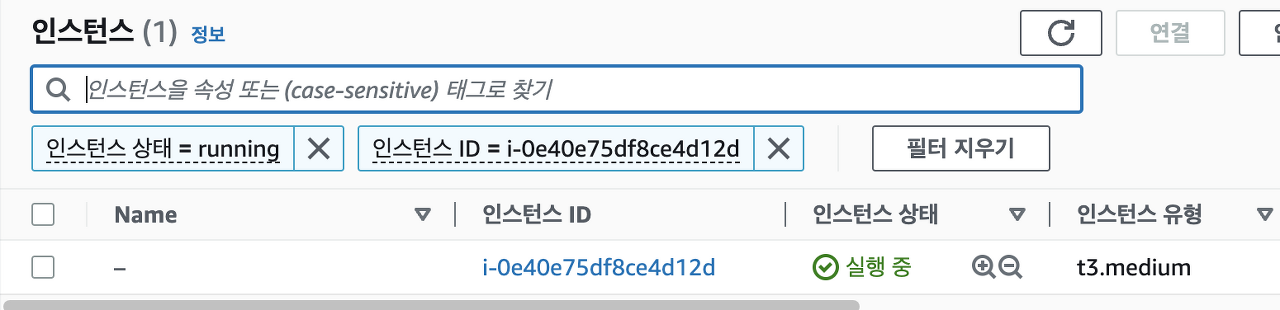
kubectl 은 config 파일을 통해서 인증을 처리합니다. 마스터 노드에 명령을 내리기 위해서는 EKS로 부터 인증 파일을 얻어와야 합니다.
PS> aws eks update-kubeconfig --region ap-northeast-2 --name my-terraform-eks
Added new context arn:aws:eks:ap-northeast-2:523296135686:cluster/my-terraform-eks to /Users/jeongjuho/.kube/config

PS> kubectl get nodes
NAME                                           STATUS   ROLES    AGE     VERSION
ip-10-0-1-62.ap-northeast-2.compute.internal   Ready    <none>   4m29s   v1.24.9-eks-49d8fe8
여기까지 진행하셨다면 쿠버네티스 클러스터까지 성공적으로 세팅이 완료 됐다고 볼 수 있습니다. 미리 작성해둔 Terraform 파일을 통해 AWS 리소스를 생성하고 EKS config 를 받아서 kubectl 로 직접 쿠버네티스의 명령을 실행할 수 있는 상태 입니다.
다음글에서는 ACM 인증서를 생성하고 NginxController를 통해 ingress를 설정하여 ALB까지 EKS와 연결하여 간단한 웹서비스를 컨테이너로 띄워서 외부에 서비스 할수 있는 컨테이너를 구성해보도록 하겠습니다.
감사합니다! 🫡
코드와 비즈니스, 그 사이에서 배운 것들을 기록하고 공유합니다.